Buyers get any item's last price, lead time and rejections in one answer
Buyers ask on Teams about any item. The assistant answers from orders and receipts in Odoo, supplier emails in Outlook and inspection reports in Google Drive, with a link to each source.
- Used day to day by
- Purchase team
- Purchase head
- Stores team
What the assistant uses here
Answers from your systems, within each person's access.
- Channels Reaches people where they already talk
- Your approval Acts in your systems only after a person approves
How it runs with AI
The buyer asks on Teams in plain words. Within a minute the automated assistant answers with the last price, the lead time worked out from Odoo receipts, any price change in supplier emails and the rejection record from the inspection reports, with a link to each. The buyer goes into every reorder and supplier call with the full history.
How the assistant works here
Where people ask, what it draws on, and what comes back.
Where people ask
-
 Microsoft Teams, steps 1 and 5
Who asks
- Purchase team
- Purchase head
- Stores team
What it draws on
Apps
-
 Odoo, steps 2 and 6
 -
 Outlook, step 3
 -
 Google Drive, step 4
Context
- Item codes and names, step 1
- Lead time definition, step 2
- Supplier names and contacts, step 3
- Rejection limit per item, step 4
- Report to order links, step 4
- Who may see prices, step 5
What comes back, and who decides
- An answer with its sources, step 5
Who decides
- Decides which suppliers to ask for a quote and where the next order goes, step 6
How a request runs
-
Step 1, the assistant: Reads the buyer's question on Teams
-
Step 2, the assistant: Pulls every order for the item from Odoo, with its price and the days from order to receipt
-
Step 3, the assistant: Finds any price letter or delivery notice about the item in the purchase mailbox in Outlook
-
Step 4, the assistant: Reads the incoming inspection report for each lot in Google Drive and totals the rejections
-
Step 5, the assistant: Replies on Teams with the price, lead time and rejection record, and a link to each order, email and report
Exception Shows both versions when the records disagree, such as an emailed price that differs from Odoo
- Person
Step 6, a person: Decides which suppliers to ask for a quote and where the next order goes
The same flow works with the apps you use.
Who controls it
-
Access
It runs with each person's own access, so it shows only what they could open themselves
-
Approvals
The supplier, the price and the quantity stay the buyer's decision. The assistant gives the history
-
Record
Every question, source, action and approval is recorded
This fits you if
- Your buyers reorder the same items from 2 or more suppliers
- Purchase orders and goods receipts are recorded in Odoo
- Suppliers send price changes by email to a shared purchase mailbox
- Quality files an inspection report for each incoming lot
What to watch for
- Prices are shown to the purchase team and finance only. Stores and planning see dates, quantities and lead times
- The assistant reads the shared purchase mailbox only, and leaves everyone's personal inbox alone
- Quality writes the PO number on each inspection report, so the assistant can tie every lot to its order
Often done together
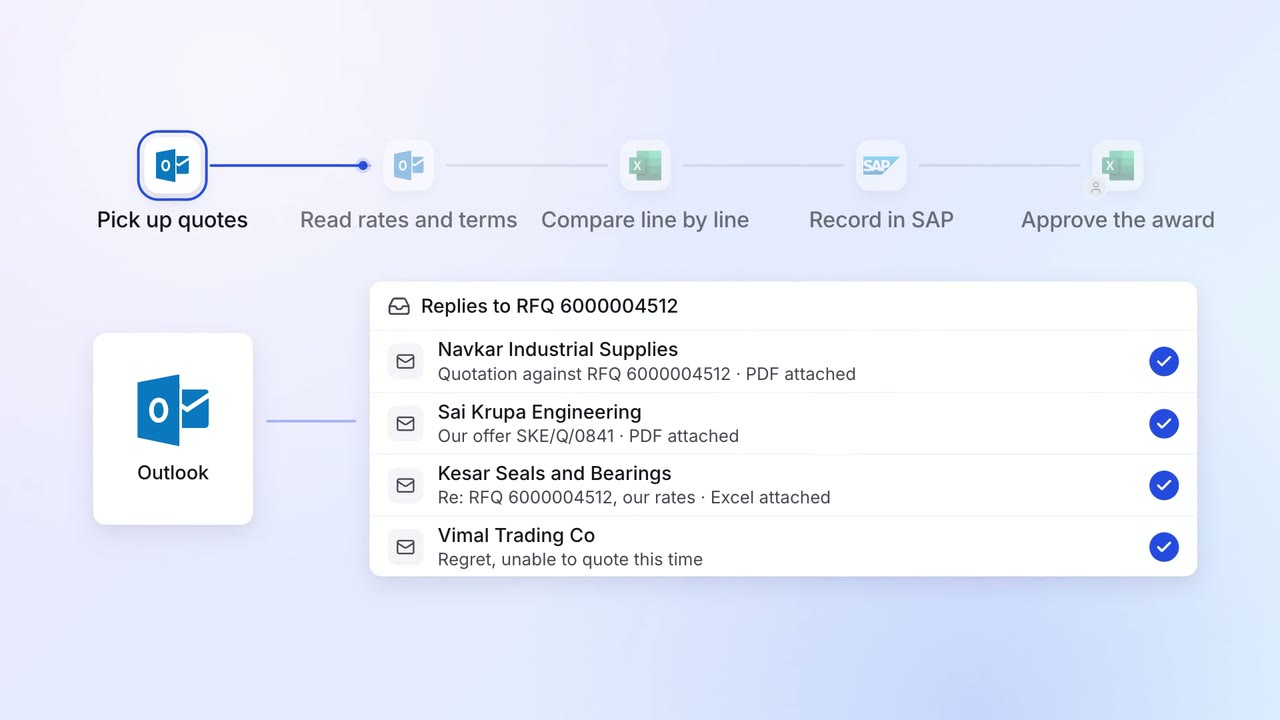
Operations Vendor management
Supplier quotes are compared line by line, with the best value marked
- Outlook
 Excel
Excel SAP S/4HANA
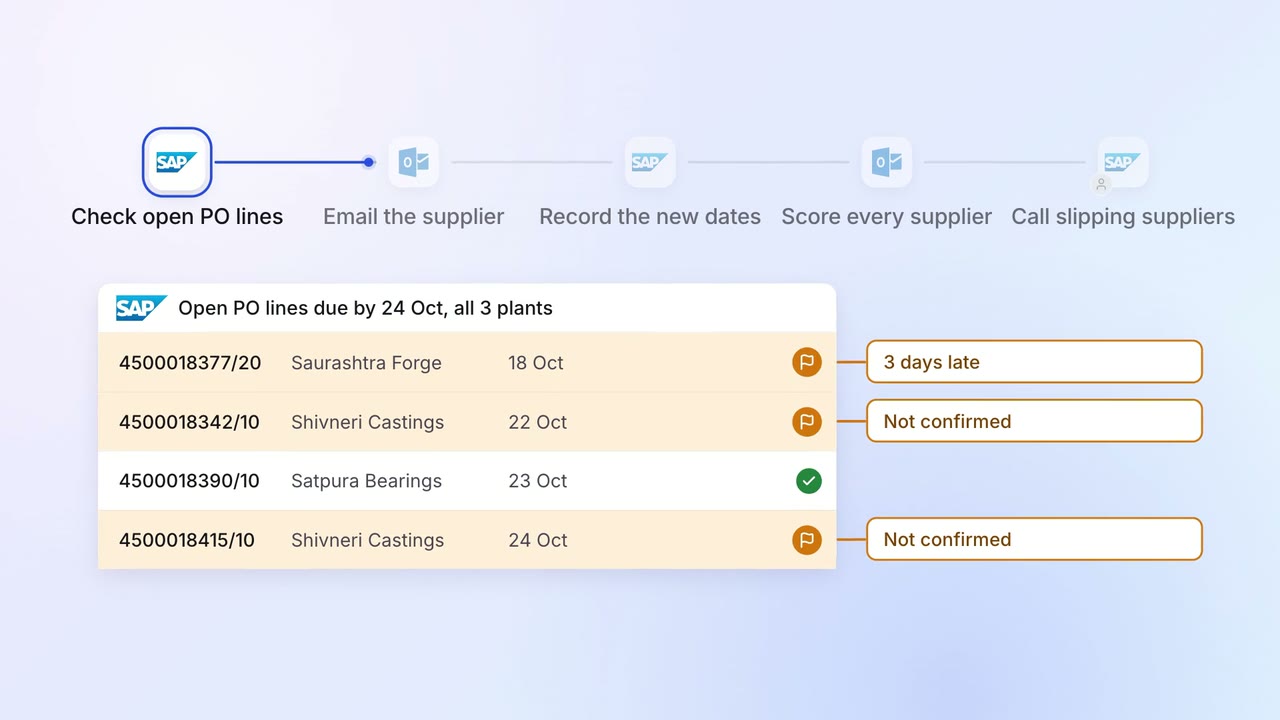
Operations Vendor management
Late supplier deliveries are chased every day, and buyers see who is slipping
- SAP S/4HANA
- Outlook
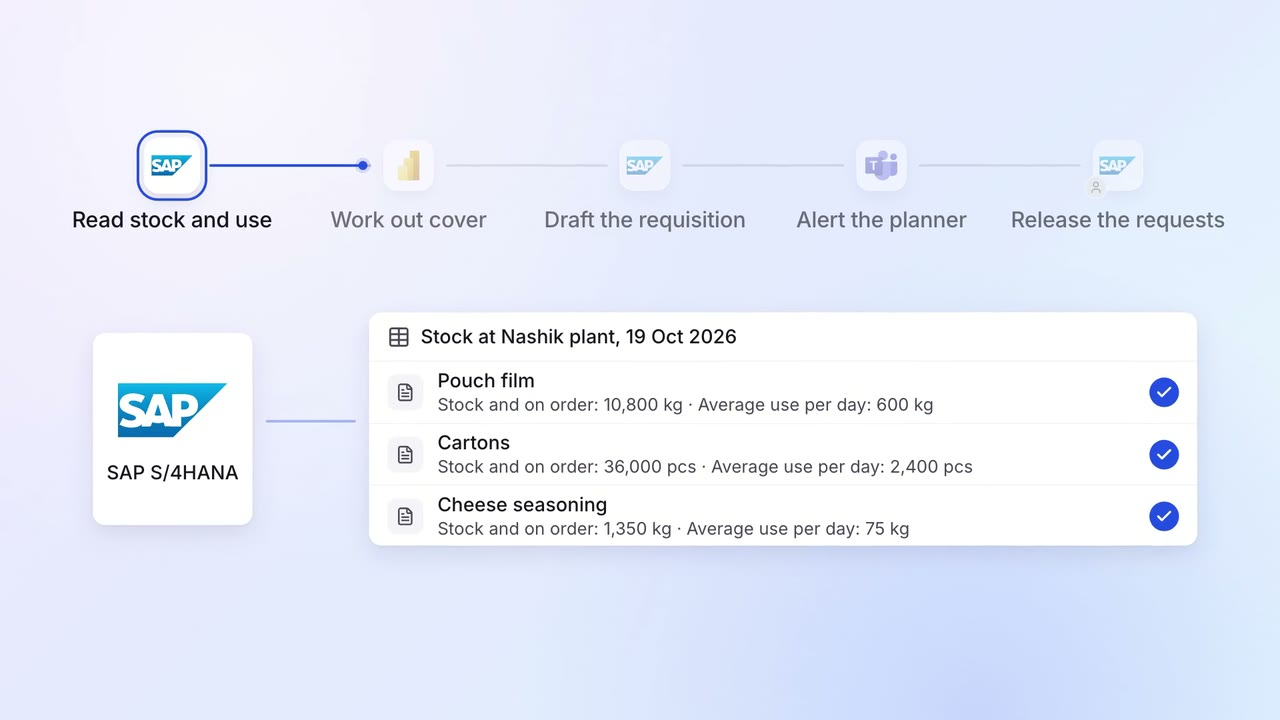
Operations Inventory and purchasing
Purchase requests go in before stock runs out, based on what you actually use
- SAP S/4HANA
 Power BI
- Microsoft Teams